
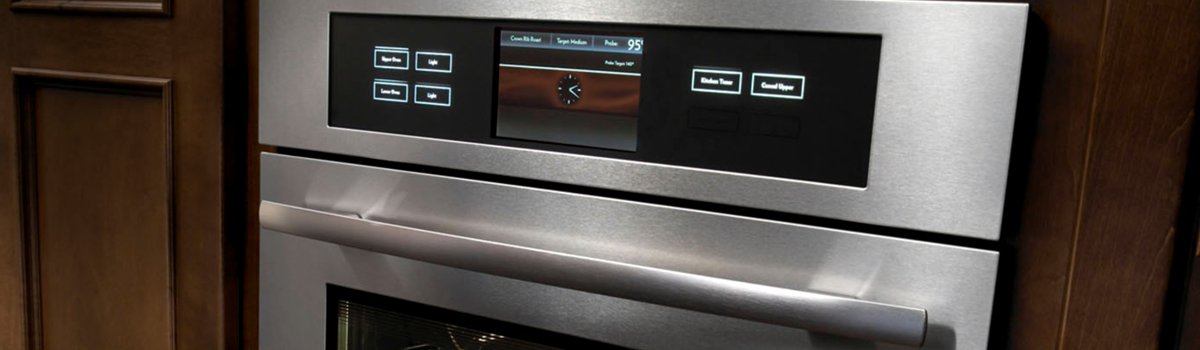
When a JennAir oven or stove throws Error Code F7, it’s usually pointing to one thing: the user interface (UI) thinks a button is stuck. Sometimes a key really is jammed; other times the control is “seeing” a false press because of moisture, grease, or a failing keypad ribbon. The good news—many F7 cases are simple to clear at home if you move methodically.
What F7 Actually Means (in plain English)
Your oven’s control looks at the keypad matrix for quick, clean signals: a press, a release.
F7 = “I’m reading a button press that won’t let go.” That can be:
- A physically jammed key or warped bezel trapping the key cap
- Moisture/cleaner residue bridging contacts on the touch membrane
- A loose or oxidized ribbon cable between the UI and control board
- In rarer cases, a faulty UI (touch membrane/control panel) or the main control board misreading inputs
You might see F7 flash as soon as you power on, or right after cleaning the panel, or when certain keys simply don’t respond.
Safety First (quick note you shouldn’t skip)
Before you open panels or unplug connectors, turn the oven off at the breaker. Wait a full 60 seconds so capacitors discharge. If you smell burning, see scorching, or the glass is cracked, skip DIY and call a pro right away.
Quick Things to Try First (fast wins)
Start simple and non-invasive. Most F7s clear here.
- Power reset (hard reboot)
Switch the range off at the breaker for 5 minutes, then back on. If F7 is gone and the keys respond normally, you likely had a transient or moisture-related fault. - Wipe + dry the panel
Use a slightly damp microfiber with a drop of mild dish soap. No sprays directly on the panel—mist the cloth instead. Follow with a dry microfiber and let the keypad air-dry 15–30 minutes. Residual cleaner or steam is a common culprit. - Check for a stuck button cap
Look from the side under good light. If a cap looks pressed in, gently work it free. Sometimes the trim bezel shifts after a hard wipe and pinches a key.
If F7 returns immediately after these steps, keep going.
Deeper DIY: Finding and Fixing the Stuck-Button Condition
1) Inspect the bezel and fit
Lightly press around each key to feel for rough spots or rubbing. If the front trim was removed for cleaning or a remodel and reinstalled slightly off-center, it can bind a key. Reseat or realign if needed.
2) Dry out hidden moisture
If you recently steam-cleaned nearby surfaces or used a wet cloth, moisture can wick behind the UI.
- Turn power off.
- Open the control panel area only if you’re comfortable (remove the back guard or front panel screws—model dependent).
- Let the UI area air-dry. You can use room-temp airflow (no heat gun; warm air can warp plastic).
3) Reseat the keypad ribbon cable (experienced DIYers)
With power off, carefully release the ribbon connector latch on the control board.
- Inspect for oxidation (darkened pins) or residue.
- Reseat the ribbon straight and fully. Do not bend sharply or scratch traces.
If the F7 clears after reseating but returns later, the ribbon or UI membrane may be wearing out.
If any of the above feels out of your comfort zone, stop here—misaligned connectors can create new faults. A technician can do this quickly and safely.
When DIY Isn’t Enough: What a Technician Will Do
A proper diagnosis is quick and avoids guessing:
- Key matrix test: Check the keypad grid for a line/column “stuck low.”
- Continuity/insulation checks: Test the membrane tails and ribbon for opens/shorts.
- Connector service: Clean/condition contacts; correct ground points.
- Parts decision: Replace the UI (touch membrane/control panel) if a specific key line is shorted; replace or reprogram the main control board if it’s misreading good inputs.
- Fit & finish: Realign bezels/trim so keys travel freely, and confirm normal operation across all buttons.
If F7 appeared after a spill or heavy clean, the UI membrane can recover once fully dry—but long-standing F7 often means the membrane’s conductive layers are degraded and replacement is the durable fix.
Common Mistakes That Keep F7 Coming Back
- Spraying glass cleaner directly onto the panel (it seeps into the keypad).
- Pressing buttons with wet or greasy hands.
- Using abrasive pads that scuff the bezel and make keys bind.
- Reinstalling trim with a slight twist so a corner pinches a key.
- Ignoring a loose ribbon after a previous service or move.
reventive Care (keep that control happy)
Keep it dry. Mist the cloth, not the panel. Wipe, then dry.
Gentle pressure only. Keypads aren’t mechanical switches—firm taps are enough.
Watch the heat and steam. After high-heat cooking or broiling, avoid wiping the hot panel; let it cool so steam doesn’t get pulled inside.
Annual quick check. Make sure trim and screws are snug so the panel sits square and keys don’t rub.
A short checklist you can screenshot:
- Don’t spray cleaner on the panel
- Dry after every wipe
- Tap, don’t mash keys
- Let it cool before cleaning
- Keep trim aligned and snug
FAQ (fast answers)
Can I use a hair dryer to dry the keypad?
Cool or room-temp airflow only. Heat can warp plastics and seals.
Will F7 clear by itself?
If moisture was the cause, it might—after the area fully dries. But recurring F7 usually needs reseating or part replacement.
Is it safe to cook with F7 showing?
No. The control believes a key is “held down,” which can block normal operation and create unpredictable behavior. Fix first.
F7 means the control reads a stuck button. Start with a careful dry-out and a clean, then a full power reset. If it returns, a pro can quickly confirm whether it’s the UI membrane, the ribbon, or the board—and fix it the right way.